
A GUIDE TO YOUR NEXT REQUEST
How to request and track a quotation
Build your product list. Send your requirements. Keep your quotation number and private access code.
- Choose products
- Send your request
- Track progress
Find and add products
- Open the shop. Search a product name, model, or SKU.
- Use the filters to narrow the results. Open a product for more details.
- Select Ask for quotation or the + button to add it to your list.
Choose Request builder for a live document preview. Switch views without losing your list or contact details.
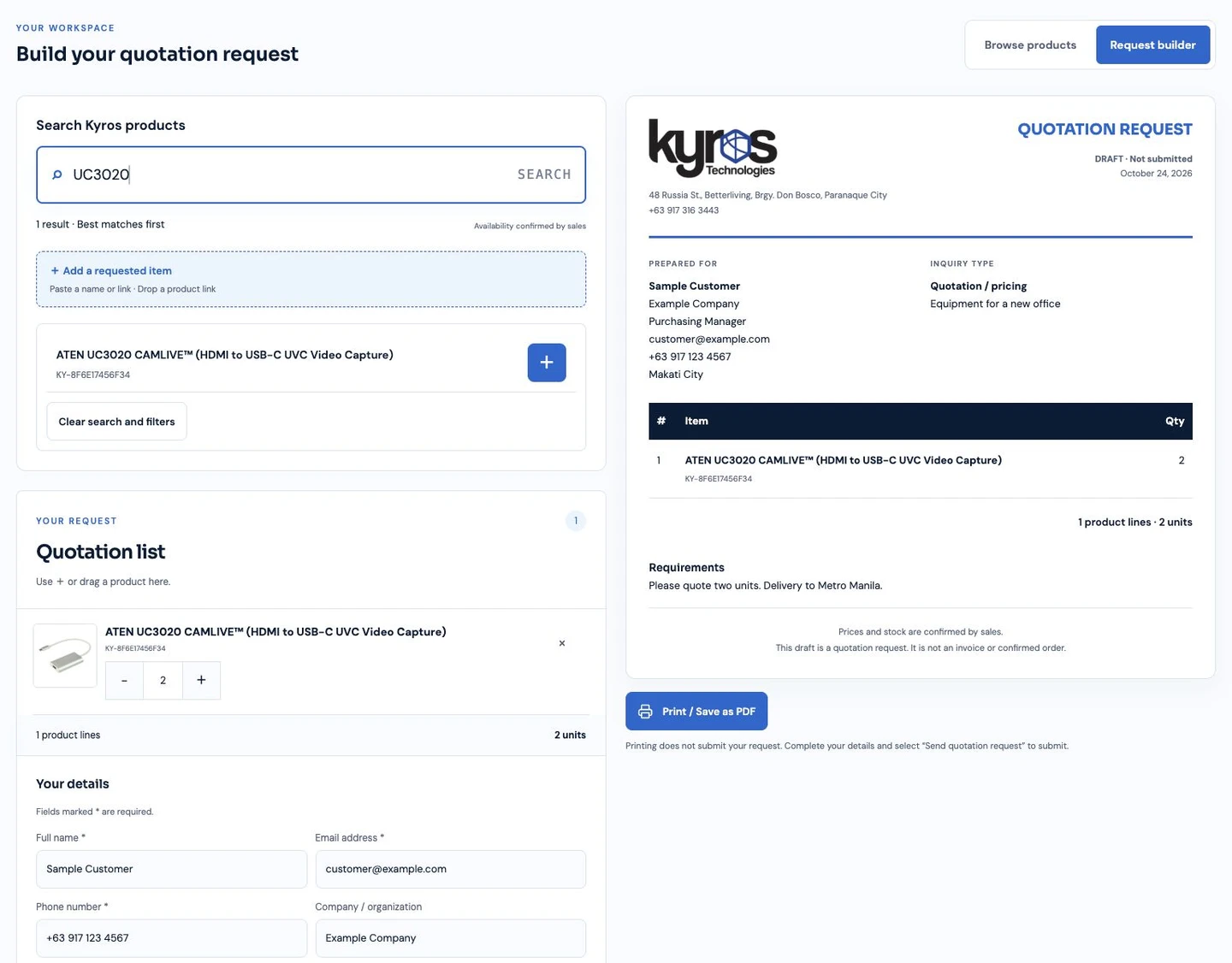
Cannot find an item? Select Add a requested item. Enter its name or product link.
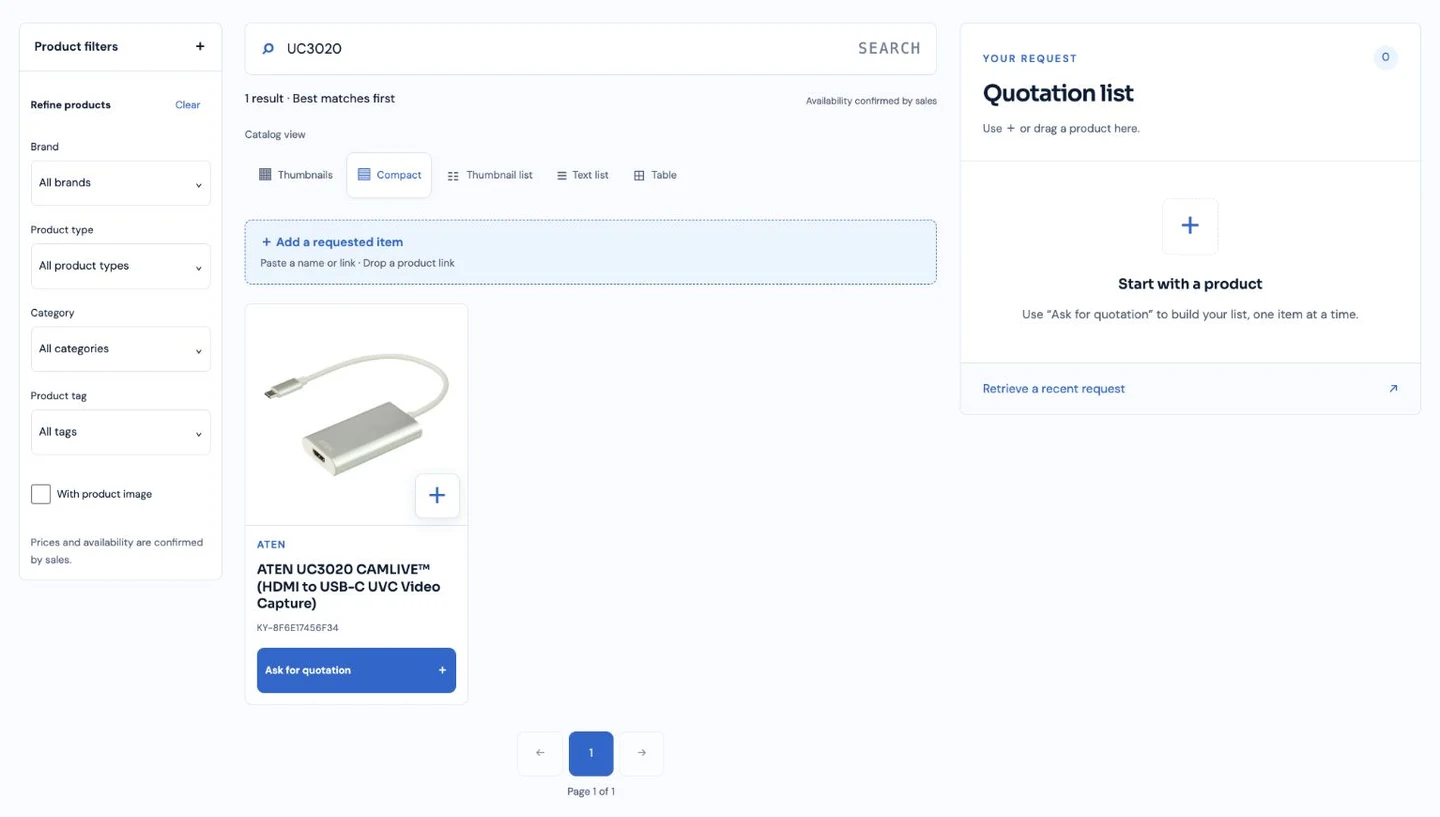
Review and send your request
- Check the Quotation list. Use + and − to set quantities. Use × to remove an item.
- On a phone, select Review list to reach your quotation list.
- Enter your full name, email address, and phone number. Select an inquiry type.
- Add your company, position, address, and subject if needed. Enter delivery details or specifications under Requirements.
- Read and select the consent box. Select Send quotation request.
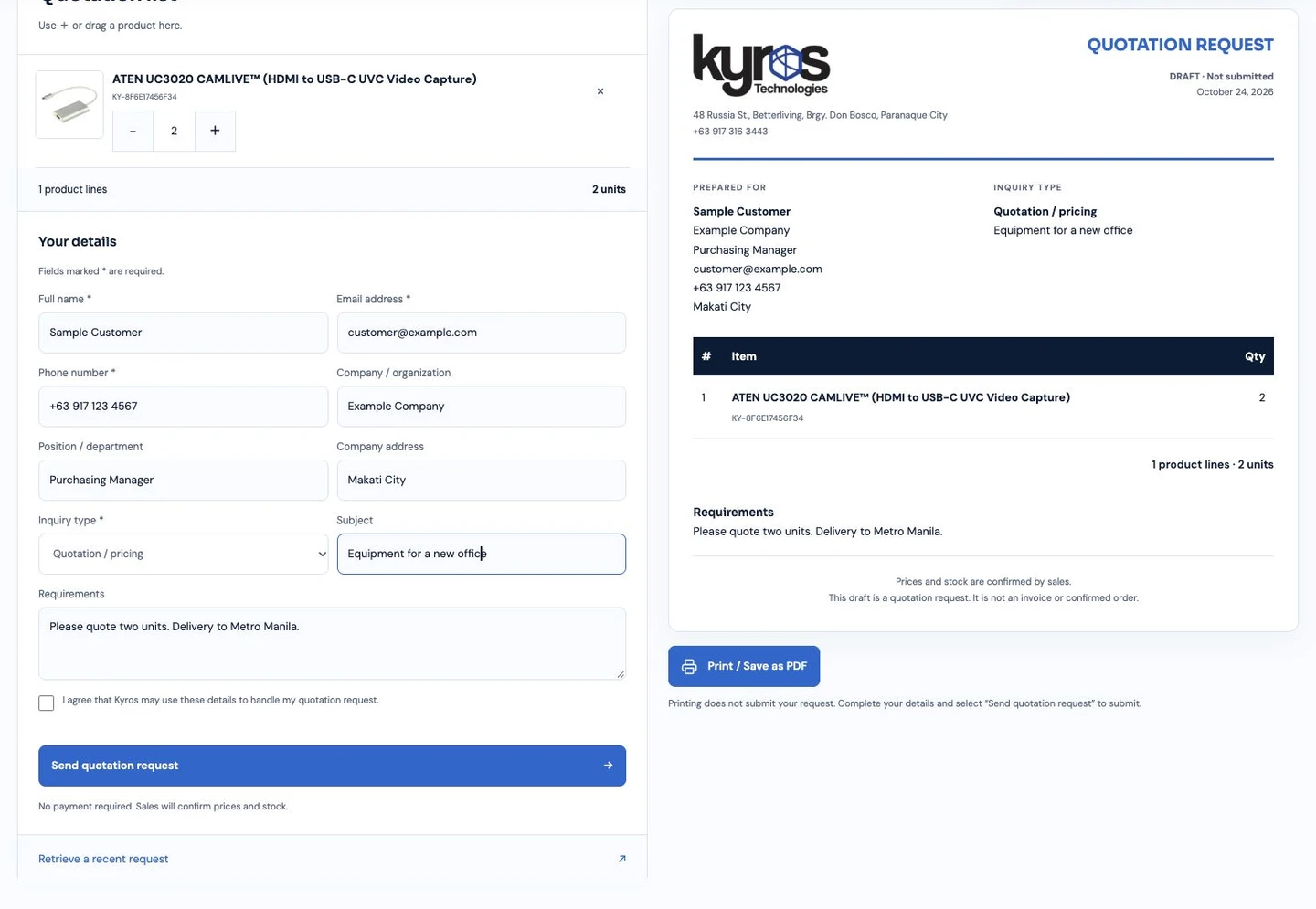
No payment is required. Sales will confirm prices and stock, then prepare the final quotation separately.
Save your quotation number and code
Keep your access code private.
After a successful save, the receipt shows your quotation number and private access code. Save both in a secure place.
The number identifies your request. The code lets you retrieve it on another device. Anyone with both can view the request.
Wait for Request saved before leaving the page. Do not rely on email alone to keep your access code.
Retrieve and track your request
- Open Track a request. You can also select Retrieve a recent request in the shop.
- For status only, enter your quotation number and request email. Select Check status.
- To view products or follow up, expand the private-code option. Enter your quotation number and code, then select Retrieve request.
- Select Follow up with sales if you need an update. The page confirms whether the follow-up was saved.
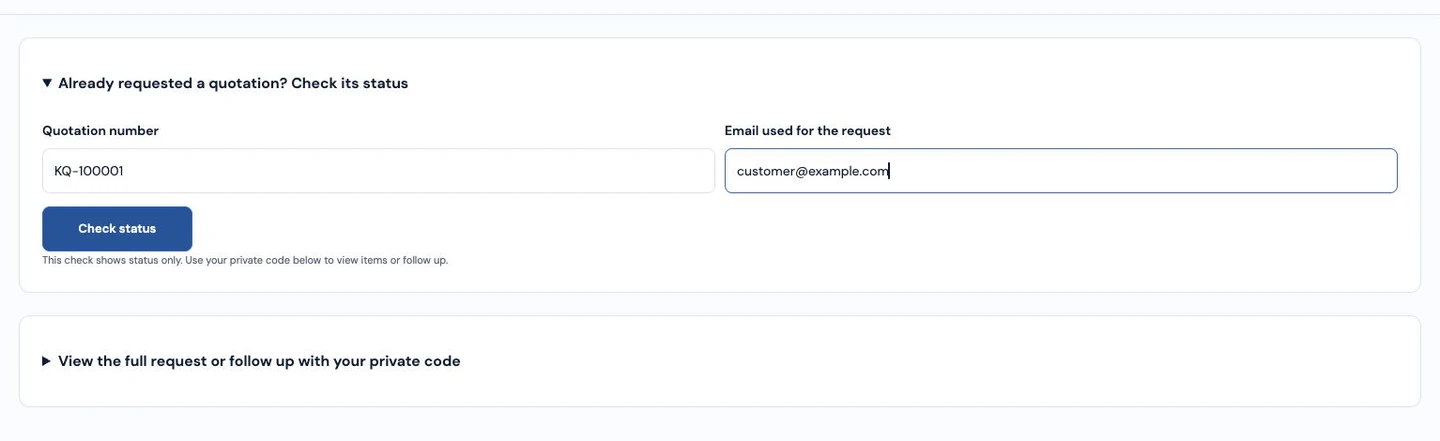
Follow-ups are limited to one every 24 hours. Closed requests do not accept follow-ups.
Read the status
- 01
Request received
Your request is saved.
- 02
Sales review
Sales is reviewing your requirements.
- 03
Quotation ready
Sales has marked the quotation as ready.
- 04
Closed
The request is closed.
These statuses describe your request. They do not confirm payment, reserved stock, or delivery.
Need a hand?
Check the number and code if retrieval fails. If you lose your code, contact Kyros with your quotation number for help.
Guide updated 24 October 2026. Screenshots use sample details. Select any screenshot to open a larger image.